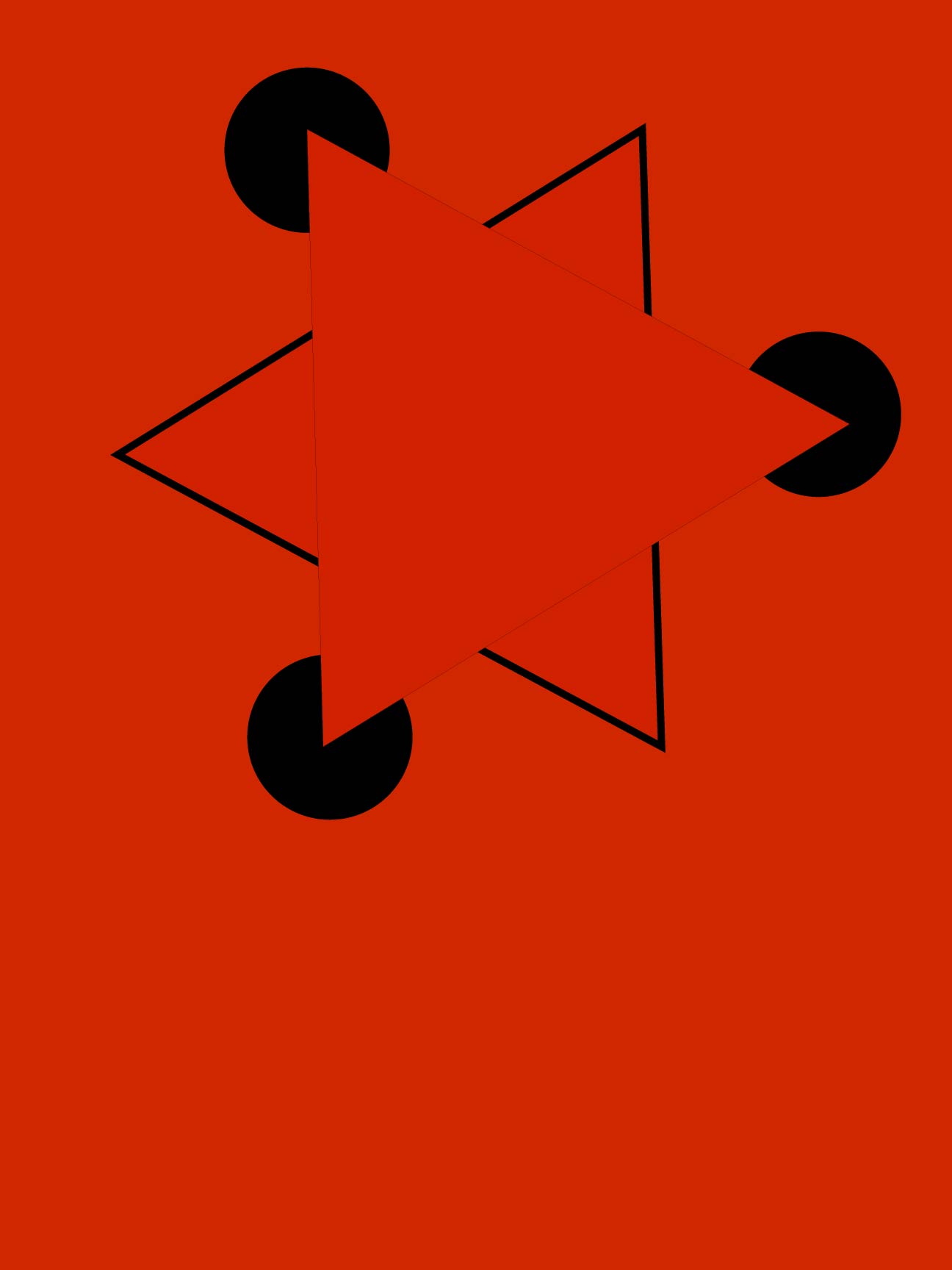
In the beginning of this class faculty told us about colour gradient tool in Illustrator. The colour gradient tool has two types :-
- Radial gradient – Use this gradient type to blend colors from one point to another point in a circular pattern.
- Linear gradient – Use this gradient type to blend colors from one point to another in a straight line.
The Colour gradient Tool works with the Gradient Panel. The panel is where the gradient type and colors are specified. The tool is used to adjust the appearance of the gradient.gradient is a graduated blend of two or more colors or tints of the same color. You can use gradients to create color blends, add volume to vector objects, and add a light and shadow effect to your artwork. In Illustrator, you can create, apply, and modify a gradient using the Gradient panel, the Gradient tool, or the Control panel.
After the colour gradient tool faculty told us about the blend tool. The most basic thing you can do with the Blend tool is to blend one shape into another across a specified number of steps.
Overview and Keyboard Shortcuts for using blend tools are :-
- Blend Tool

- Blend selected paths or shapes (Ctrl + Alt + B)
- Release blend (Shift + Ctrl + Alt + B)
- Expand to make blend permanent
- Reverse Spine to flip a blend
- Replace Spine to apply a different path
- Reverse Front to Back to reverse the stacking position of blends (useful for animation)
In the second half, faculty checked our previous class assignment which is we have to make 2 posters using basic shapes and also show any gestalt’s principle. so I m posting the picture of my 2 posters :-
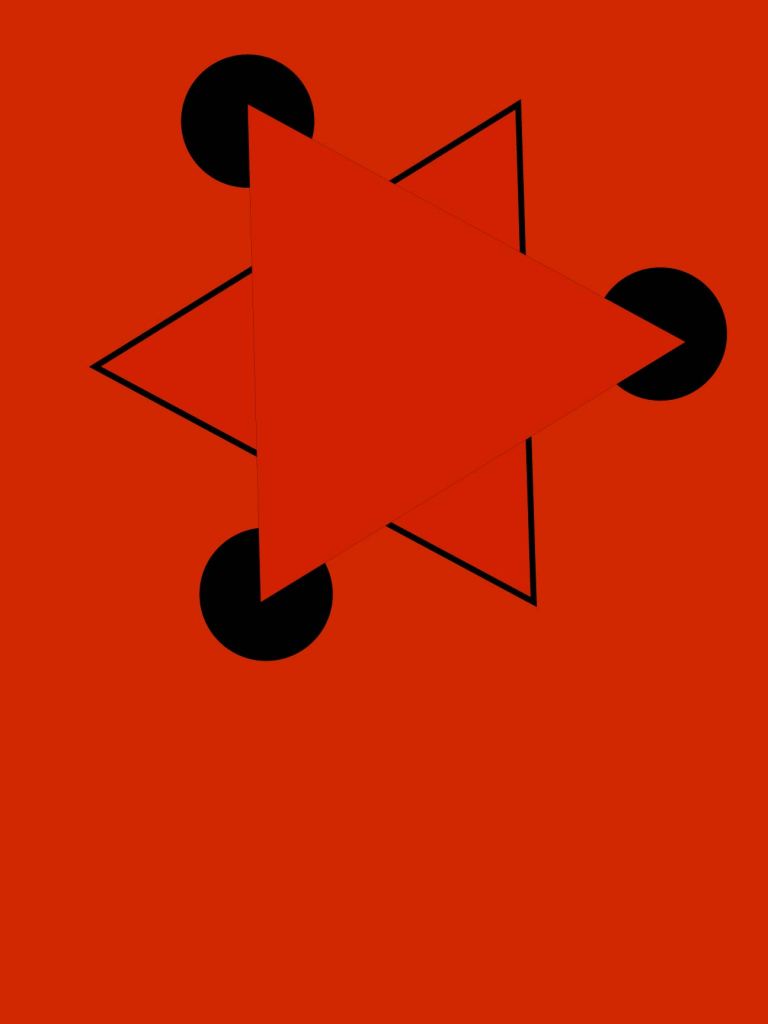
This is my 1st poster in which I have shown gestalt’s principle of closure.
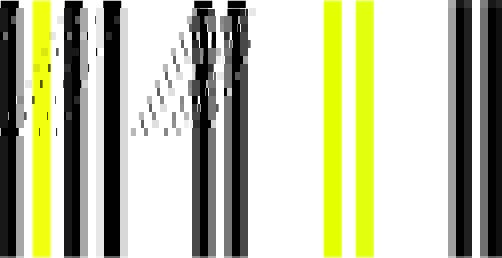
This is my 2nd poster in which I have shown gestalt’s principle of proximity.

 Aditi jaiswal's blog